
Upload the template
In this step, you upload the completed Excel file into your project. After the upload, the system validates the file and adds the test locations to the map.
Step 1: Upload the Excel file
Once your file is ready, click Upload Excel and select the prepared Excel file from your computer.
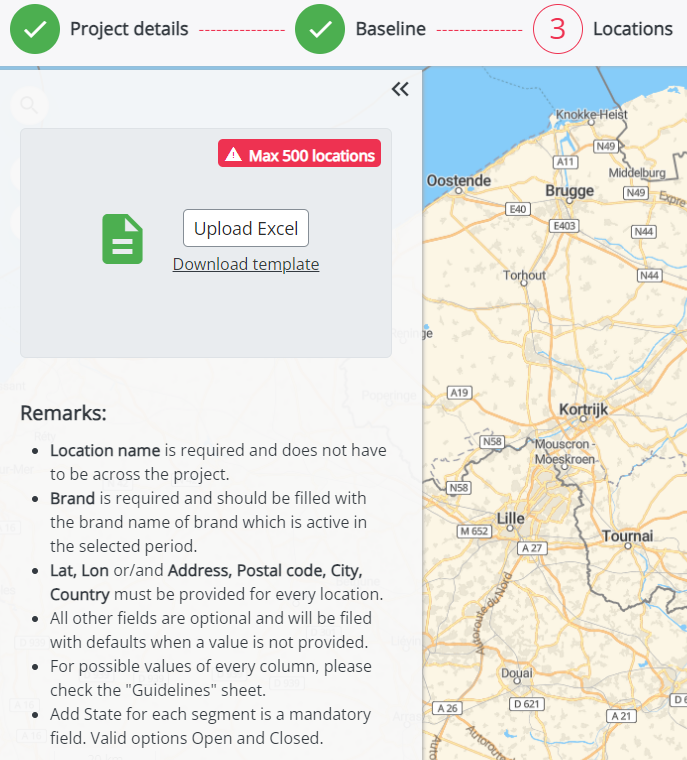
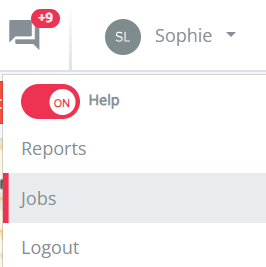
After uploading the file, you can follow the processing progress in the Jobs overview.
To open the Jobs overview:
- Click your name in the application.
- Select Jobs.
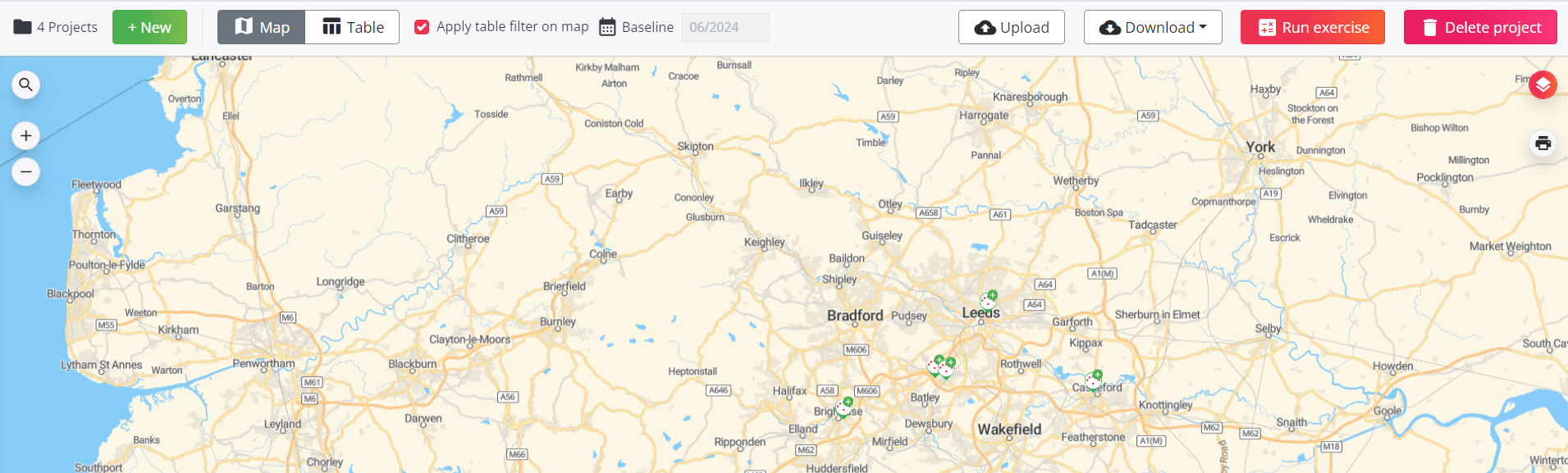
When the file has been successfully processed, the test locations are added to the map.
 What if the upload fails?
It is possible that the validation of the file fails. In that case, the job will show a red exclamation mark in the Jobs overview.
This means that the file contains one or more issues that need to be corrected before the locations can be imported.
To resolve the issue, check the error details in the Jobs overview and update your Excel file if needed. You can also consult this article for more information on how to solve upload and validation errors.
Step 2: Validate locations with low geocoding accuracy
After the import, some locations may appear on the map with an orange exclamation mark.
We recommend checking these locations before continuing with the project.
To validate or correct a location:
- Click the marker with the orange exclamation mark on the map.
- Click the Edit icon.
- Review the error message in the location pop-up.
- Check whether the location is positioned correctly on the map.
- If needed, click Move location and move the marker to the correct position.

When is this step needed?
This validation step is only needed when you import locations without coordinates.
If you provide coordinates in the Excel file, the tool uses those coordinates to position the locations on the map. In that case, the low-geocoding-accuracy validation step is not needed.
Once the file is successfully imported, you can go to the next step: Calculate the project