
Optimize: Overview & workflow
The Optimize module allows you to test the predicted potential of a large list of locations in batch. Instead of calculating locations one by one manually (in Location Planning), you can upload a list of locations or use a saved simulation and let the module calculate the expected impact automatically.
You can use the Optimize module to evaluate new openings, brand takeovers, closures, or changes in location characteristics.
A tutorial of this module can be watched here.
Before you start
The Optimize module is only available for Power users.
When an Optimize batch calculation is running, the Data Management module is temporarily blocked for all users. Users will see a notification indicating which user is running the Optimize exercise, together with a progress bar showing the calculation status.
You can continue using the Location Planning module while an Optimize project is running.
Multiple Optimize projects can run at the same time. Each project will continue progressing.
How optimize calculations work
In the Optimize module, locations are tested as an N+1 simulation. This means that each uploaded location is added and calculated individually against the selected baseline network.
As a result, Optimize does not calculate the combined effect of opening multiple locations at the same time.
After the Optimize calculation, you can select relevant locations and open them together in the Location Planning module. This allows you to run a combined simulation and evaluate the total impact on your network.
Choose your optimize project type
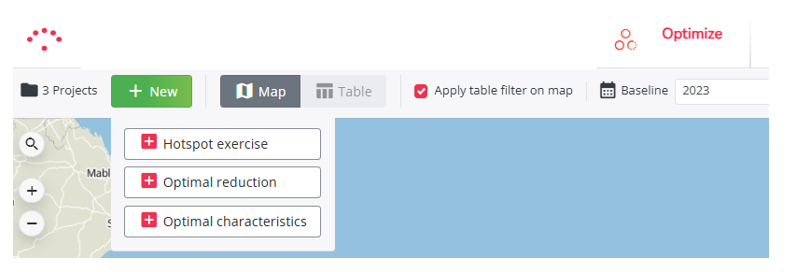
You can create three types of Optimize projects.
Hotspot exercise
Use a Hotspot exercise when you want to test the potential of new locations or brand takeovers.
You can start from a list of locations or from a saved simulation. Each uploaded location is added one by one to the selected baseline network.
A brand can also be a competitor brand.
Use this project type when you want to answer questions such as:
- Which candidate locations have the highest predicted potential?
- What would be the impact of opening a new location?
- What is the potential of taking over competitor locations?
Optimal reduction
Use optimal reduction when you want to test the closure of existing locations.
You can start from your existing network or from a saved simulation. The module calculates the impact of closing locations and provides the results in a summary table.
Use this project type when you want to answer questions such as:
- Which locations could be closed with the lowest network impact?
- What is the expected effect of closing specific locations?
- Which locations are least critical within the current network?
Optimal location characteristics
Use Optimal characteristics when you want to test changes in location characteristics.
You can start from a list of locations or from a saved simulation. The module calculates how changes in characteristics affect the predicted potential and visualizes the impact.
Use this project type when you want to answer questions such as:
- How would different location characteristics influence performance?
- Which characteristics have the strongest impact on predicted potential?
- What configuration would make a location more attractive?
General workflow
The Optimize workflow consists of several steps. Each step links to a separate article with detailed instructions.
- Create a project
- Select a period
- Choose a dataset (not needed for reduction projects)
- Prepare your list of locations (not needed for reduction projects)
- Upload the template (not needed for reduction projects)
- Calculate the project
- Results interpretation guide after calculation
- Analyze and select relevant locations for further analyses
- Export results
- How to create a simulation based on your project (optional)
- How to update your list of locations after calculation (optional)
Use these articles in order if you are running an Optimize project for the first time. More experienced users can go directly to the step they need.
Related articles
- Possible Excel import failures
Learn what to check if your Excel template cannot be uploaded or processed correctly. - Outdated results after baseline changes
Understand why Optimize results may become outdated when changes are made to the baseline after calculation.