
Create a simulation to calculate combined effects
In the Optimize module, each location is calculated separately, meaning calculations for one location don't consider other locations in the same project.
If you want to evaluate the combined effects of multiple locations within a project, the Optimize module lets you select which locations to test together in the Location Planning module. You will also have certain options available depending on the project type.
1. Select the locations & create the simulation
Read here how you need to select the locations.
To create a simulation, select the locations you want to include and click Create simulation.

For Hotspot exercices
For hotspot exercices, you can configure the following options;
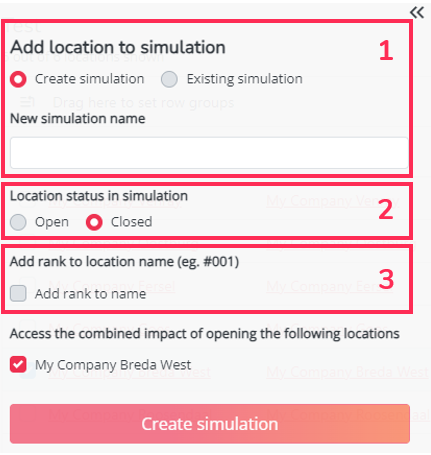
1. Create a new simulation or add locations to an existing simulation
You can choose to:
- Create a new simulation containing only the selected locations.
- Add the selected locations to an existing simulation that was previously saved on your user account.
2. Add selected locations as open or closed
You can choose whether the selected locations should be added to the simulation as open or closed.
If locations are added as closed, they will be visible on the map, but they will not be taken into account when calculating network impacts.
3. Add a ranking to the location names
You can choose to add a ranking number to the location names based on a parameter of your choice, such as net brand impact.
For example, if you rank locations based on net brand impact, the location with #001 in its name will be the location with the highest net brand impact on your network.
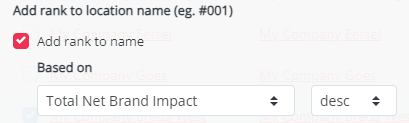
Remark: If you add a ranking to selected locations and add them to an existing simulation, the ranking will only take into account the selected locations. Locations that already exist in the simulation will not be included in the ranking.
For Optimal reduction projects
For reduction projects, you can configure the following options before creating the simulation.
Create a new simulation or add locations to an existing simulation
You can choose to:
- Create a new simulation containing only the selected locations to be closed.
- Add the selected locations to an existing simulation that was previously saved.
For reduction projects, the locations added to the simulation will have the default status closed when you open the simulation in the Location Planning module.
For Optimal characteristic projects
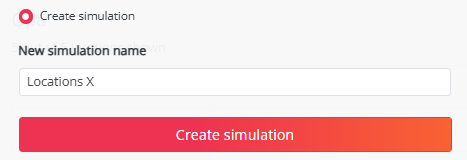
For optimal location characteristics projects, you only need to enter a name for the simulation.
2.Open the simulation in Location Planning
After configuring the required options, click Create simulation.

The simulation will be created and can then be opened in the Location Planning module by clicking Load and selecting your created simulation.

3.Calculate the results
The selected locations will already be visible on the map. Only thing you'll still need to do is press calculate to assess your combined effects.
This workflow allows you to move from individual Optimize results to a combined simulation, so you can evaluate the full network impact in Location Planning.