
Check file upload progress and validation errors
After uploading your Excel file to the project, you can follow the progress of the upload and validation process in the Jobs section.
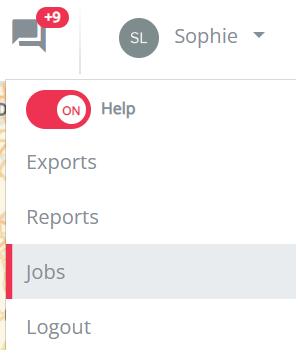
To open the Jobs section, click your name in the top-right corner of the platform and select Jobs.
File validation errors
It is possible that the validation of your file fails. When this happens, the job will show a red exclamation mark.

To review the errors, click the download button on the right side of the job. This will download a version of your file with additional information about the validation errors.
You will also receive a notification in the platform. From this notification, you can download the error file directly.

Review the error file
In the downloaded error file, two new columns are added next to the columns you provided:
- Row level errors
- Global errors
These columns explain what went wrong in the corresponding row or in the file structure.

Common validation errors
The most common validation errors are listed below.
Mandatory information is missing
A mandatory column was not provided, or a mandatory field is empty.
Check the required columns and make sure all mandatory fields are completed before uploading the file again.
The address information is incomplete
The address fields must be completed in one of the accepted formats:
- Latitude, longitude, and country
- Address, postal code, city, and country
- Address, postal code, city, country, latitude, and longitude
The country is not recognized
The country value must match one of the accepted country codes for your platform.
Examples include:
- BE for Belgium
- NL for the Netherlands
- DE for Germany
- FR for France
- ES for Spain
- UK for the United Kingdom
The brand is not recognized
The brand name must match one of the accepted values in the template.
You can find the available options in the Guidelines tab of the Excel template.
Upload the corrected file
After correcting the errors in the Excel file, upload the file again by clicking Upload.
